Home » Support » Index of All Documentation » How-Tos » How-Tos for Web Development »
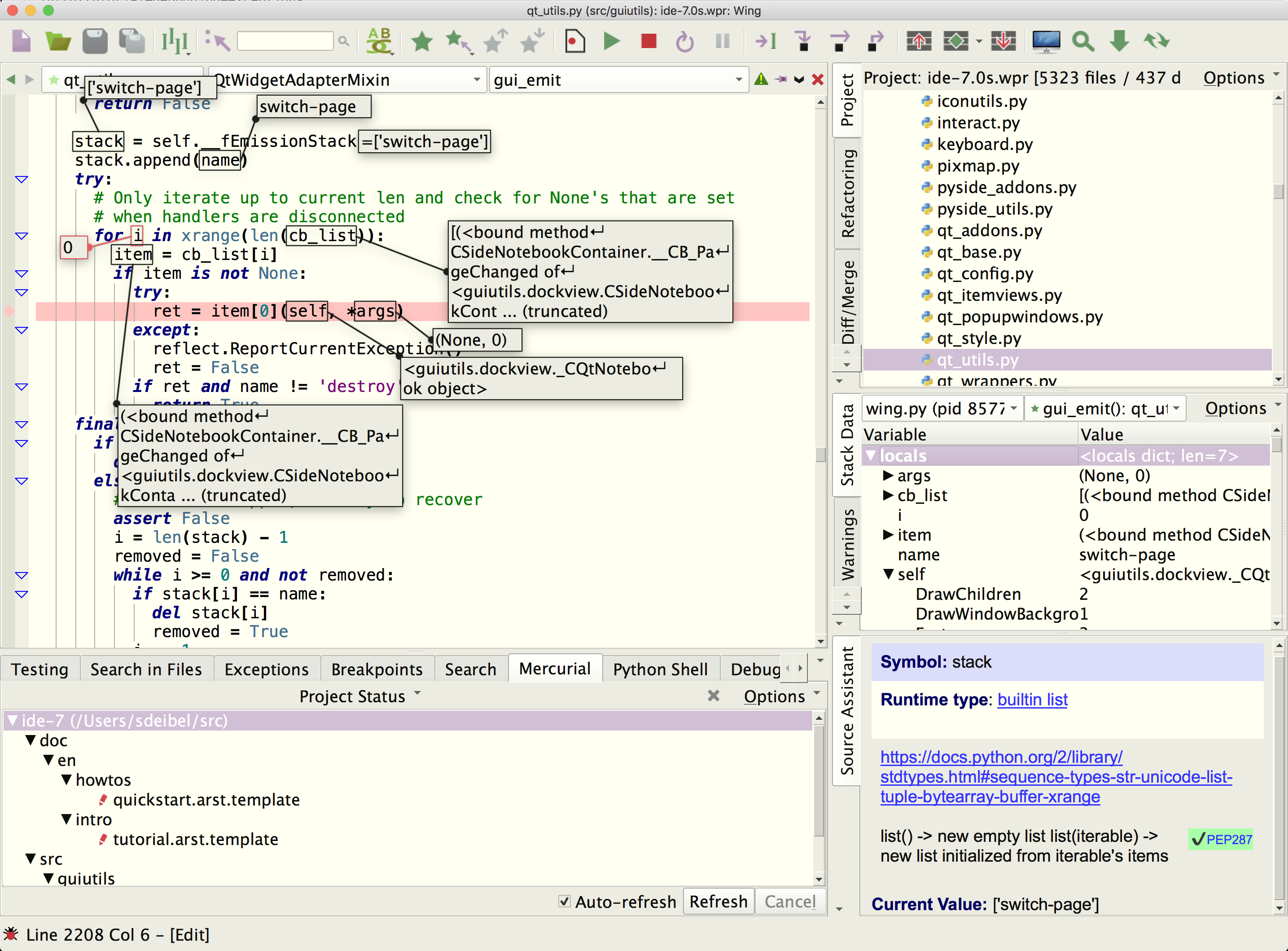
Wing IDE is an integrated development environment that can be used to develop, test, and debug Python code that is written for Turbogears, a powerful web development system. Wing provides auto-completion, call tips, a powerful debugger, and many other features that help you write, navigate, and understand Python code.
For more information on Wing IDE see the product overview. If you do not already have Wing IDE installed, download a free trial now. To get started using Wing, refer to the tutorial in the Help menu in Wing and/or the Wing IDE Quickstart Guide.
In order to debug Turbogears applications, you will need Wing 3.0 or later, since earlier versions did not support multi-threaded debugging.
Installing Turbogears
The Turbogears website provides complete instructions for installing Turbogears. The procedure varies slightly by OS. See also the Notes section below.
Configuring Turbogears 1.x to use Wing
This section assumes your Turbogears 1.x project is called wingtest. If not, substitute your project name in the following instructions.
- Go into the Turbogears instance directory wingtest and run Wing
- Add your instance directory to the project and save it as wingtest.wpr There is no need to add all of Turbogears to the project; just the instance should suffice.
- Open start-wingtest.py in Wing and set it as main debug file from the Debug menu
-
Edit start-wingtest.py and add the following before the server is started:
import os import cherrypy if os.environ.has_key('WINGDB_ACTIVE'): cherrypy.config.update({'autoreload.on': False})This is needed to prevent creation of a sub-process controlled by the auto-restarter, which breaks debugging since Wing's debugger will not be running in the sub-process. If you omit this step, the symptom will be failure to stop on any breakpoints in your Turbogears application.
- Set a breakpoint on the return line of Root.index() in your controllers.py or somewhere else you know will be reached on a page load
- Start debugging in Wing from the toolbar or debug icon. If Wing issues a warning about sys.settrace being called in DecoratorTools select Ignore this Exception Location in the Exceptions tool in Wing and restart debugging. In general, sys.settrace will break any Python debugger but Wing and the code in DecoratorTools both take some steps to attempt to continue to debug in this case.
- Bring up the Debug I/O tool in Wing and wait until the server output shows that it has started
- Load http://localhost:8080/ or the page you want to debug in a browser
- Wing should stop on your breakpoint. Be sure to look aroung a bit with the Stack Data tool and the in Wing Pro the Debug Probe (a command line that works in the runtime state of your current debug stack frame).
Configuring Turbogears 2.x to use Wing
Turbogears 2.0 changed some things about how Turbogears instances are packaged and launched, so the configuration is different than with Turbogears 1.x.
This section assumes your Turbogears 2.x project is called wingtest. If not, substitute your project name in the following instructions.
- Go into the Turbogears instance directory wingtest and run Wing
- Add your instance directory to the project and save it as wingtest.wpr There is no need to add all of Turbogears to the project; just the instance should suffice.
- Add also the paster to your project. Then open it and and set it as main debug file from the Debug menu
- Open up the Python Shell tool and type import sys followed by sys.executable to verify whether Wing is using the Python that will be running Turbogears. If not, open Project Properties and set the Python Executable to the correct one.
- Next right click on paster and select File Properties. Under the Debug tab, set Run Arguments to serve development.ini (do not include the often-used --reload argument, as this will interfere with debugging). Then also set Initial Directory to the full path of wingtest.
- Set a breakpoint on the return line of RootController.index() in your root.py or somewhere else you know will be reached on a page load
- Start debugging in Wing from the toolbar or debug icon. If Wing issues a warning about sys.settrace being called in DecoratorTools select Ignore this Exception Location in the Exceptions tool in Wing and restart debugging. In general, sys.settrace will break any Python debugger but Wing and the code in DecoratorTools both take some steps to attempt to continue to debug in this case.
- Bring up the Debug I/O tool in Wing and wait until the server output shows that it has started
- Load http://localhost:8080/ or the page you want to debug in a browser
- Wing should stop on your breakpoint. Be sure to look aroung a bit with the Stack Data tool and in Wing Pro the Debug Probe (a command line that works in the runtime state of your current debug stack frame).
Notes for Turbogears 1.x
Turbogears 1.x will install itself into whichever instance of Python runs the installer script, and only certain versions of Python work with a given version of Turbogears.
If you want to avoid adding Turbogears to an install of Python that you are using for other purposes, you can install Python to a new location and dedicate that instance to Turbogears. On Linux, this can be done as follows (assuming you create /your/path/to/turbogears as the place to install):
- In a Python source dist do:
./configure --prefix=/your/path/to/turbogears make make install
- Download tgsetup.py (or from the Turbogears website
- Change to /your/path/to/turbogears
- Run bin/python tgsetup.py --prefix=/your/path/to/turbogears (this works in Turbogears 1.0.5 but in older versions you may need to edit tgsetup.py to replace /usr/local/bin with /your/path/to/turbogears/bin.
- Run bin/tgadmin quickstart
- Enter project name wingtest and defaults for the other options
Similar steps should work on Windows and OS X.
Notes for Turbogears 2.x
Turbogears 2.x uses virtualenv to separate what it installs from your main Python installation so in most cases you can install Turbogears 2.x using an installation of Python that you also use for other purposes. If, however, a clean or separate Python installation is desired, you can install Python to a new location and dedicate that instance to Turbogears. On Linux, this can be done as follows (assuming you create /your/path/to/turbogears as the place to install):
- In a Python source dist do:
./configure --prefix=/your/path/to/turbogears make make install
- Then install easy_install by running its setup script with the Python at /your/path/to/turbogears/bin/python.
- Whenever the Turbogears installation instructions call for invoking easy_install use the one in /your/path/to/turbogears/bin
Similar steps should work on Windows and OS X.
Related Documents
Wing IDE provides many other options and tools. For more information:
- Wing IDE Reference Manual, which describes Wing IDE in detail.
- Turbogears home page, which provides links to documentation.
- Wing IDE Quickstart Guide which contains additional basic information about getting started with Wing IDE.
| « 3.4. Using Wing IDE with Zope | Table of Contents | 3.6. Using Wing IDE with web2py » |